What Is MCP? Model Context Protocol Explained (With a Demo)
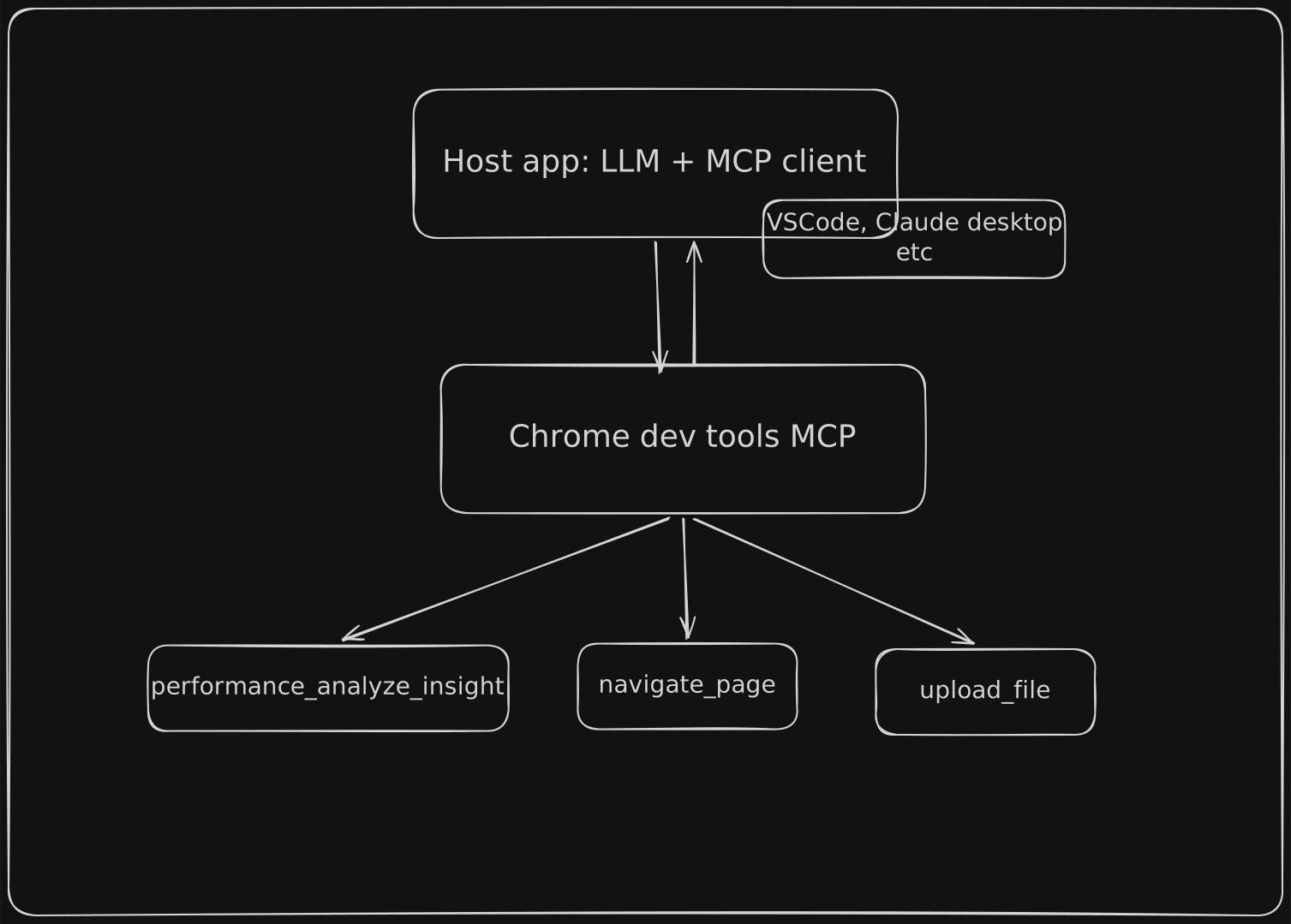
MCP (Model Context Protocol) is how AI apps plug into outside tools. This post walks through a real setup: the Chrome DevTools MCP server driving a browser from inside OpenCode.
What is MCP?
MCP is an open standard for connecting AI apps to external tools and data sources through a single interface. An AI can read data and take actions in services like GitHub, Jira, or Chrome, limited to whatever access you grant it.
Why does it exist?
Without a standard, every AI app needs a custom integration for every service. MCP replaces that with one protocol: build a server once, and any MCP-compatible app can use it.
The three roles
Host: The AI application you interact with. It contains the LLM. Example: OpenCode, Claude Desktop, VS Code, Cursor.
MCP Client: A component inside the host that keeps a 1:1 connection to a server, Example: Built into the host.
MCP Server: A program that exposes tools (and optionally resources and prompts) from an external service. Example: Chrome DevTools MCP, GitHub MCP
How a tool call works
The diagram shows tools only. MCP servers can also expose resources (data the AI can read) and prompts (reusable templates).
When you ask the AI to do something:
The client asks the server which tools it offers.
The LLM picks the tool that fits your request.
The client sends the tool call to the server.
The server does the work and returns a result, which the LLM uses to answer you.
This post uses Chrome DevTools MCP, which drives a Chrome browser. A few of its tools:
performance_analyze_insight: analyzes a recorded performance trace and returns insights.
navigate_page: tells Chrome to navigate to a given page.
upload_file: uploads a file through a file input on the page, which is useful for testing (only works if the page has an upload field).
There are many more. See the full tool reference.
Because these tools are predefined, an LLM can run performance traces, navigate pages, take screenshots, and inspect the console and network without you writing any automation code.
Note: the server starts the browser on demand, when the AI first uses a tool that needs one. Connecting to the server alone does not launch Chrome.
Use cases
Brokerage MCPs like Zerodha Kite and Upstox connect to your account so you can ask the AI about your holdings. Prefer read-only access where you can, and treat AI output as information, not financial advice.
Chrome DevTools MCP analyzes a site's performance, tests features, and debugs console or network issues. It's also handy for just poking around a page.
GitHub MCP reviews pull requests and explores codebases. With the right permissions, it can open issues or leave comments too.
How to use: Chrome DevTools MCP with OpenCode
This walkthrough uses OpenCode, but any MCP-compatible host works (VS Code, Claude Desktop, Cursor, etc.).
Prerequisites: a recent version of Node.js (the project currently lists 20.19+; check the repo for the latest) and Google Chrome.
1. Open your OpenCode config
Open (or create) the file:
~/.config/opencode/opencode.json2. Add the MCP server
{
  "$schema": "https://opencode.ai/config.json",
  "mcp": {
    "chrome-devtools": {
      "type": "local",
      "command": ["npx", "-y", "chrome-devtools-mcp@latest", "--headless"],
      "enabled": true
    }
  }
}
A few notes on the options:
"enabled": true loads the server by default. Set it to false to turn it off.
--headless runs Chrome without a visible window. Remove it if you want to watch the AI drive the browser.
Don't add --slim if you want the full tool set. It limits the server to a small set of essential tools, so some tools used in this post may be missing.
3. Restart OpenCode
Restart the app, then open the MCP list (type /mcp). You should see the chrome-devtools server.
4. Try it
Connect to the server and ask:
Test https://nikchavan.dev/ for SEOThe AI launches Chrome, gathers what it needs, and reports back.
Security notes
MCP servers can run code and touch your data, so treat them like any other dependency.
Trust the server. npx -y ...@latest downloads and runs code on your machine. I'd pin a specific version instead of @latest.
Mind what the browser can see. Chrome DevTools MCP exposes the browser's content to your MCP client, which can inspect and modify data in that browser. Don't use it in sessions where you're logged in to sensitive accounts.
Limit permissions. Give servers (especially financial ones) the minimum access they need. Read-only is safer than read-write.
Be wary of untrusted pages. Content on a web page can try to manipulate the AI (prompt injection). Review what the AI plans to do before approving actions.